

Welcome to the Smartsheet for Project Management blog, powered by Customer Centricity! Here is where I’ll offer insights, best practices, and tips for leveraging the incredible power of Smartsheet for project and program management. To learn more about my background and some of the high-level benefits of using Smartsheet to manage projects, be sure to check out Craig’s blog post linked here: Smartsheet Guru for Project Management
This week I’d like to introduce two formulas that provide key information to help drive meaningful conversations with my project teams, increase executive insights, and allow for a more proactive approach when managing deliverable due dates.
To implement these formulas, your Sheet must have the following columns and types. Note: I do recommend using the Smartsheet Project template as the foundation for your project plan.
- % Complete (Text/Number)
- Status (Single-select dropdown)
- Expected % Complete (Text/Number)
- Start (Date)
- Finish (Date)
- Duration
Let’s first improve our end-user experience by linking our % Complete and Status columns so that when you and your team edit a task’s % Complete its status will automatically update.
- Navigate to your Sheet and click into the first cell in your Status column.
- Enter the following formula: =IF([% Complete]@row = 0, “Not Started”, IF(AND([% Complete]@row > 0, [% Complete]@row < 1), “In Progress”, IF([% Complete]@row = 1, “Complete”)))
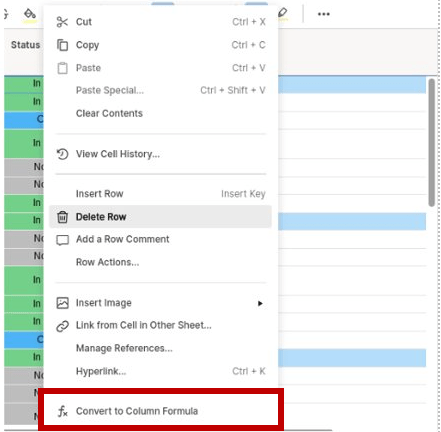
- Next, right click on the cell and select Convert to Column Formula (Note: This automatically applies the formula to the entire column and creates a ‘lock’ to prevent data from being overwritten).
- Click Save.

Now that we have a consistent way to update task status, let’s get a more granular look at the true progress made vs. plan. By adding an Expected % Complete column, we can have Smartsheet look at the Start and Finish dates for each task and return a value which displays where the % Complete should be.
So, instead of simply seeing that a deliverable is In Process with a certain percent complete, you may now see, for example, that while yes, it is In Process, the Expected % Complete is 80% and the task is only marked at 10%! YIKES – that 70% difference might mean a huge slip in your project timeline.
Let’s now add a new column to give us this quick insight!
- Navigate to your Sheet and click into the first cell in your Expected % Complete column.
- Enter the following formula: =IF(Start@row > TODAY(), “0%”, IF(Finish@row <= TODAY(), “100%”, NETWORKDAYS(Start@row, TODAY()) / Duration@row))
- Next, right click on the cell and select Convert to Column Formula.
- Click Save.


I highly recommend including these formulas in your project plan to share added insights into the true status of individual tasks as well as the overall projects and programs.
I hope you found this information helpful, and I look forward to sharing even more Smartsheet knowledge in future posts!
Local to Boston? Make plans to attend the free Smartsheet User Group session on October 10th from 2:00-5:00PM ET. I will be featured during a Customer Spotlight session where I will give insights into my personal experiences with Smartsheet and tips for increasing end-user engagement – Space is limited, so don’t wait – Register here!
If you’re looking to enhance your project-related communications and collaboration via easily configurable, low-maintenance project artifacts, we’re here to help. Please reach out to us! We’d love to discuss your goals and objectives.

 Customer Centricity
2 thoughts on “Proactive PM | Using Smartsheet Formulas”