

Welcome back! I hope you enjoyed my last blog post where I walked through two formulas in Smartsheet that allow me to take a more proactive approach when managing task due dates with my project teams – (ICYMI: Proactive PM | Using Smartsheet Formulas).
This week, I would like to introduce Smartsheet functionality that enables you and your team to spend less time tracking down key information and reporting on critical metrics so you can execute and make better decisions faster using Sheet Summary.
Prior to Smartsheet, I spent a lot of time building, updating, and maintaining weekly project scorecards in applications like Microsoft PowerPoint. The process was very manual and required that I search across multiple locations for key information. Finding the information was just half the battle – from there, I had to analyze and translate the data into a consumable presentation. The worst part: once I committed that information to PowerPoint it was already outdated.
The Sheet Summary tab in Smartsheet is available for use on all Sheets; it can be used to define, organize, and report information across multiple Sheets in real time. Sheet Owners and Admins can create new Summary fields that embed formulas, contain plain text/number data, hyperlinks and even images.
Let’s build out two Sheet Summary tabs using actual requests I have received from project stakeholders.
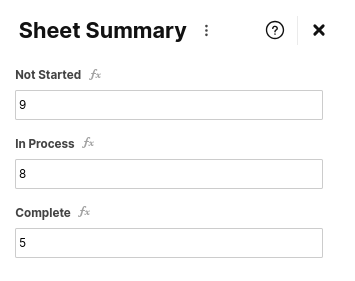
Scenario #1: The Project Sponsor has asked me to provide him with a daily count of tasks broken out by status. He says he’s been filtering the project plan and manually counting each status once a day to track progress. Let’s use Sheet Summary to provide these insights automatically!
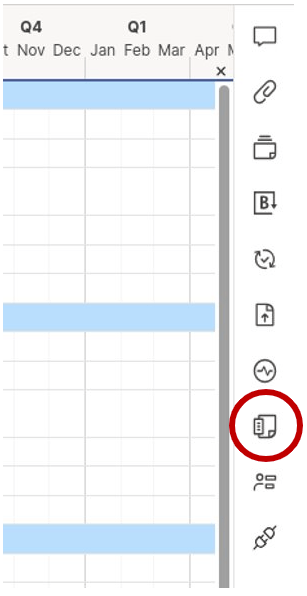
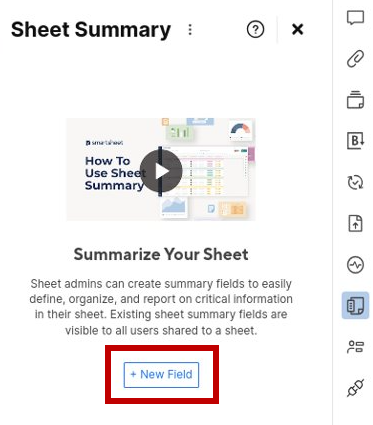
- Navigate to your project plan (Sheet) and select the Summary icon on the right-hand side of your screen
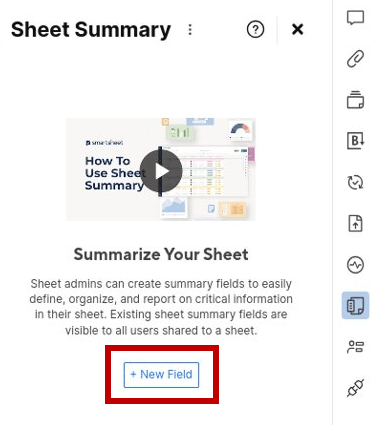
- Select the + New Field icon
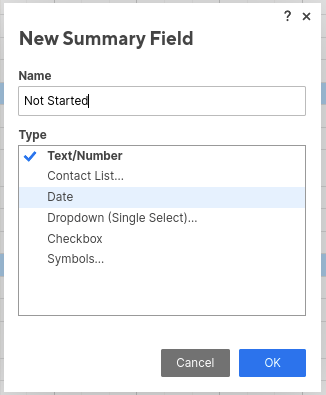
- Use the Name field to indicate the appropriate column header; for this example, I will use Not Started
- Highlight the Text/Number column type and select OK
- Enter the following formula =COUNTIF([Status]:[Status], “Not Started”) and press Enter
- Repeat this process for the remaining status options available on your project plan
- Click Save

Scenario #2: My Project Sponsor has decided to operate outside of organizational protocol for a large, cross-functional project. He has changed the standard definitions for project health, and it is creating a lot of confusion for the team. He has sent numerous emails explaining the changes he has made, but they do not resonate with the team. Let’s create some clarity by building a Legend into the Sheet Summary.
- Navigate to your project plan (Sheet) and select the Summary icon on the right-hand side of your screen
- Select the + New Field icon
- Use the Name field to indicate the appropriate column header; for this example, I will use Description
- Highlight the Text/Number column type and select OK
- Enter your description into the newly created field
- Select the + New Field icon
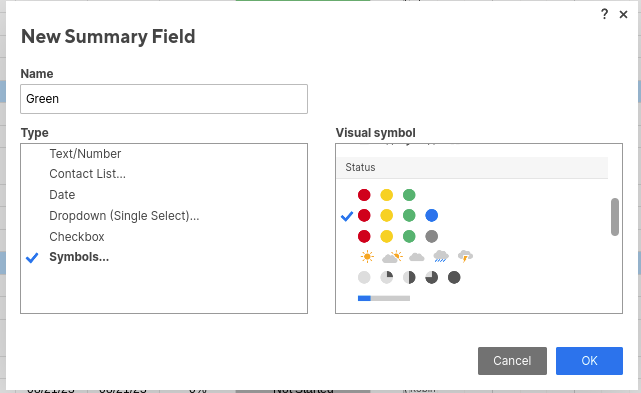
- Use the Name field to indicate the appropriate column header; for this example, I will use On Track
- Click the Symbols column type and select the R/Y/G/B harvey ball option under the Status header
- Use the Symbol dropdown to select the corresponding icon (Green)
- Repeat this process for the remaining health symbol options available on your project plan
- Select the + New Field icon
- Use the Name field to indicate the appropriate column header; for this example, I will use Project Sponsor
- Highlight the Contact List column type and select OK
- Repeat this process to add the Project Manager
- Click Save


These are just two examples of how using the Sheet Summary can create a powerful, one-stop-shop for you and your team. A few limitations to note as of the publishing of this post, Sheet Summary currently supports:
- Up to 200 fields
- Field Names up to 50 characters
- Field values equal to cell size
- Up to 500 dropdown options
Sheet Summary can create efficiencies and provide key insights into your projects in real time. I hope you can find a use case for this feature in your role!
Don’t delay, register today! Make plans to attend the free Smartsheet User Group session on October 10th from 2:00-5:00PM ET in Boston, MA. I will be featured during a Customer Spotlight session where I will give insights into my personal experiences with Smartsheet and tips for increasing end-user engagement – Register here!
If you’re looking to enhance your project-related communications and collaboration via easily configurable, low-maintenance project artifacts, we’re here to help. Please reach out to us! We’d love to discuss your goals and objectives.

 Customer Centricity
One thought on “PM Insights | Smartsheet Sheet Summary”