

Well, I am a week late with this post – but for good reason! Last week I had the opportunity to present at the local Smartsheet User Group in Boston, MA. The session brought folks from all phases of their Smartsheet journey across various industries together for learning, idea sharing, and networking. I had the spotlight for about an hour – during which time I focused on my personal journey with Smartsheet, tips and tricks for increasing end user adoption as well as a deep dive into how I have helped organizations leverage the power of WorkApps within Smartsheet to increase transparency across programs and projects.
The experience was incredible and I would strongly recommend checking out this page for local Smartsheet meet-ups in your area!
This week’s post is hyper focused on answering one of the most common questions I was asked at the User Group: “How do you get your teams to engage meaningfully with your project assets in Smartsheet?” The short answer: Workflows (aka: Automations)!
One of my favorite Workflows to introduce to teams is the Update Request. This Workflow can be used to ask collaborators for an update on key information without even logging into Smartsheet. By implementing this process, I spend less time manually tracking down information while also reducing the risk of team members inadvertently deleting or overwriting key information. Team members overwhelmingly report that they prefer to provide updates via this Workflow rather than scrolling through my 1000+ line project plans – which ultimately increases engagement.
Let’s use the scenario below to build an Update Request workflow to help my PM, Nicole.
Currently, Nicole spends approximately 5 hours per week reaching out to her project team to request updates on all tasks due in the next 14 days. This often necessitates her taking screenshots of the project plan and highlighting key rows and information that needs to be updated (% Complete, Comments, etc).
- Navigate to the desired Sheet
- Select the Automation drop-down
- Click Create workflow from scratch…
- Create a unique and easily identifiable Title for your Workflow (for this example I will use: Update Request | Next 14d)
- Use the Trigger box to identify the criteria
- Trigger: When a date is reached
- Toggle Run once to Custom
- Repeat every: 2 weeks
- Repeat on: Monday
- Starts: Today
- Ends: After 10 times
- Click Done
- Select desired time for Workflow to run (7:00AM)
- Use the Conditions box to further define the criteria
- Where: Status
- Change dropdown: is not one of
- Add value: Complete
- Under Select an action, pick Request an update
- Toggle Send to specific people to: Send to contacts in a cell and use the dropdown provided to select Assigned To
- Take a moment to review the information highlighted in Change your permissions settings to ensure your end users will receive these types of notifications. Note, you may need to reach out to your System Administrators if these settings are too restrictive.
- Click Customize message to provide your end users with necessary details; including an email Subject line.
- Select the Specific fields option to manually pick which columns you would like to display to your end users and allow them to update.
- Click Save.


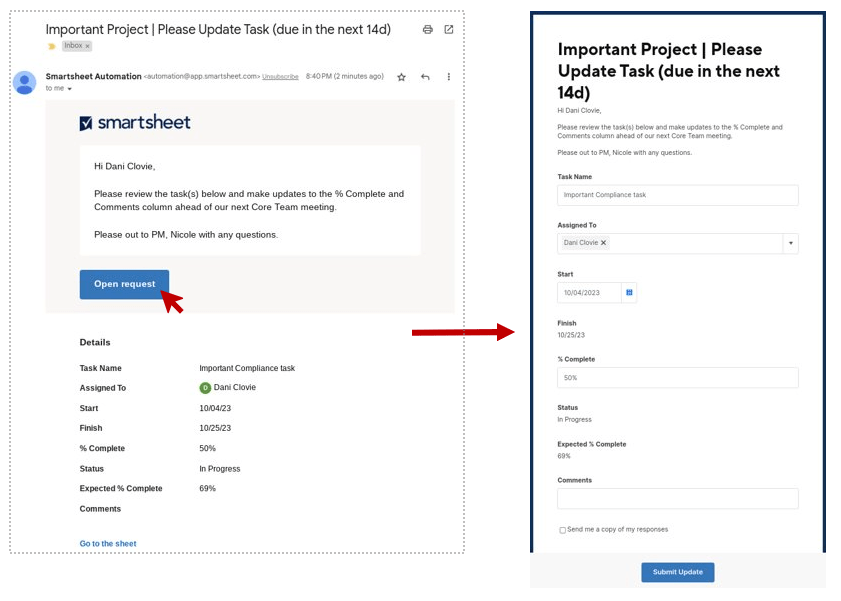
The screenshot below gives you a sneak peek into the email/notification your end user will receive. By following the prompts within the email, they will be able to provide critical updates without logging into Smartsheet. Updates collected will automatically – and immediately – be captured within your source Sheet.
A few important notes:
- Anyone can receive update requests.
- You must be a licensed Smartsheet user with Owner or Admin-level permissions on the Sheet to create workflows.
- Column types are critically important when building Workflows. For instance, the Workflow outlined above would not work as expected if our Assigned To column was a Text/Number column; it must be a Contact List.
It will be important to set expectations with your team regarding these notifications; if they don’t know they are coming, they may ignore the requests entirely. Be sure to use these notifications in moderation and remember it make take a few weeks to find the right cadence.
Hopefully, this automation will free up more of your time to facilitate cross-functional conversations and dig into important risk mitigation activities – remember, tools don’t manage projects, PM’s do!
This just scratches the surface of the incredible efficiencies Smartsheet Workflows can create. I will do deep dives into this functionality in future posts!
If you’re looking to enhance your project-related communications and collaboration via easily configurable, low-maintenance project artifacts, we’re here to help. Please reach out to us! We’d love to discuss your goals and objectives.

 Customer Centricity
One thought on “Creating PM Efficiencies | Smartsheet Update Requests”