

‘Tis the season…to ensure non-working days and holidays are defined on the projects you are managing in Smartsheet!
If you are a Sheet Owner or Admin, follow the steps below to quickly add non-working days and holidays to your project schedules.
- Navigate to the desired Sheet within Smartsheet
- Toggle the Sheet from Grid View to Gantt View
- Click the Edit Project Settings gear icon, in the upper right-hand corner
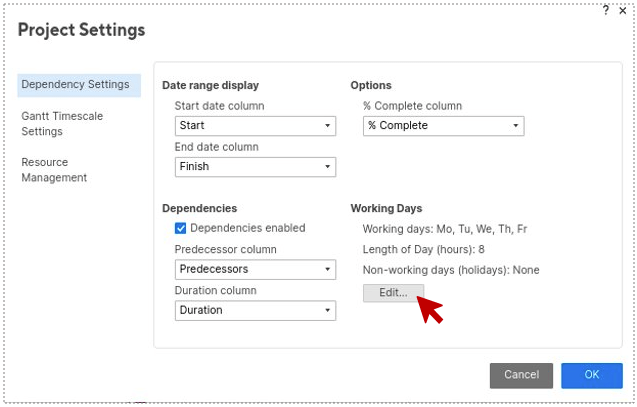
- From the Dependency Settings tab, select the Edit… button under Working Days
- Manually enter or paste your organizations non-working days/holidays, ensuring that each new date is separated by a comma
- Click OK
- Back on the Project Settings window, click OK
- Click Save



You may notice task dates shift to account for the newly added non-working days and holidays.
A few things to note as of the publishing of this post:
- Tasks and milestones can start on a non-working or holiday, but the end dates can’t occur on these types of days
- Non-working days and holidays are excluded in duration calculations
Please note, the non-working days and holidays you’ve added will only be applied to the Sheet you made the updates to. At many organizations, however, your Smartsheet System Administrator can configure working, non-working, and holidays at the account level – across all Sheets within your organization.
I hope this quick and easy update helps to keep your projects on track through the busy holiday season!
In closing, if you are seeking to up-level Smartsheet for PM competencies in yourself, or organization, please reach out to discuss how we can help.
Click here to return to our topical index of articles on High Performance Project Management.

 Customer Centricity
Awesome, thanks!
LikeLike